
2.3K
One fine day, when I were viewing my photos in windows 7, I got shocked when I saw a yellowish tint or an overlayer that appeared on not only for one photo but all my photos!

I googled around and found out that this is a bug or issue caused by buggy/conflicting monitor profile with Windows 7.
And here’s the step-by-step procedures to solve it.
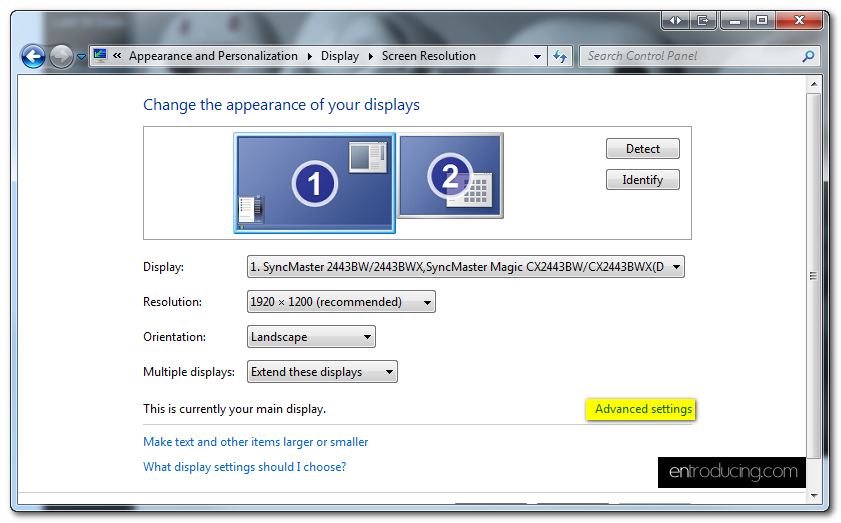
1. Click on ‘start’, ‘control panel’ and click on ‘Adjust screen resolution’

2. Select ‘Advanced settings’
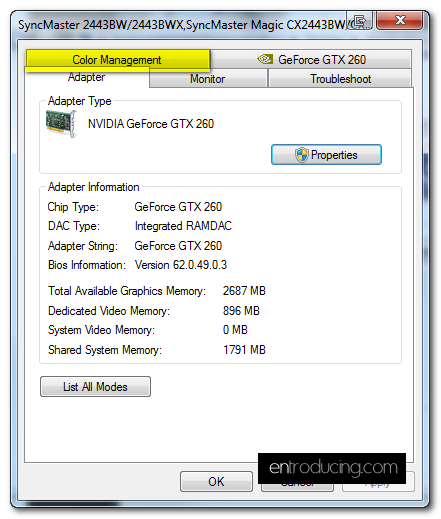
3. Select ‘Color Management’ tab
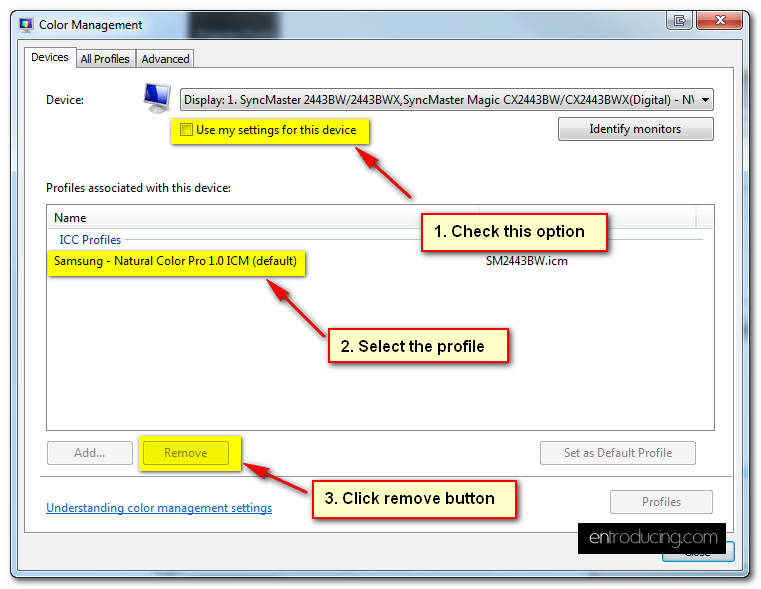
4. Follow the steps as shown below.
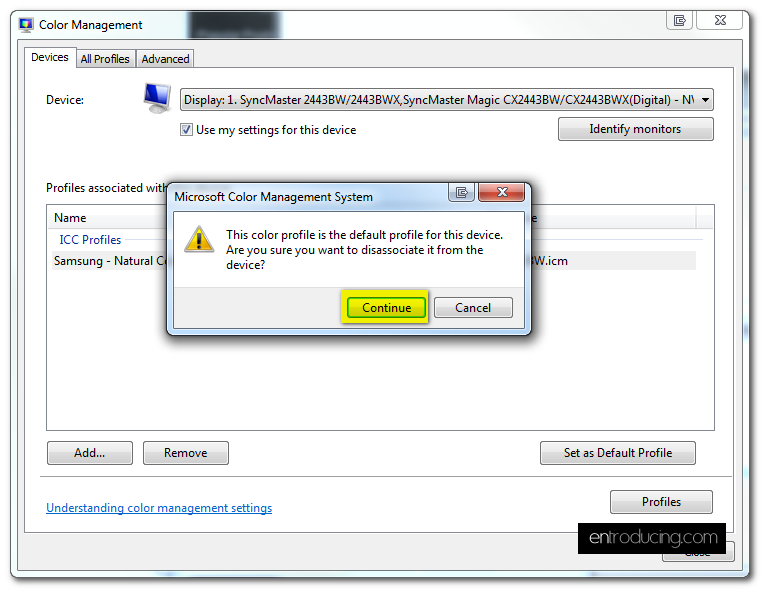
5. Click ‘continue’ when prompt
6. Click ‘close’ or ‘OK’ all the way back to control panel. Now try open any photo/image and it should display correctly now.

Does it helps?

2 comments
Thank you so much, spent a good 20 minutes wondering what was going on….
Quite a stupid thing implemented by the color profile. Wondered why they do that!